Using expo prebuild & Xcode to debug Production App Errors
Is your Expo managed iOS app crashing in production? Here is a tip I've used to identify troublesome bugs that only happen in production.
We recently transitioned one of our core apps to EAS Build as part of moving to Expo 48.
Right out of the gate, the app ran perfectly in Expo Go. We pushed a build, and in TestFlight, the app instantly crashed.
So, what can you do when that happens? Here are some quick tips.
Expo prebuild & XCode build
This can surface quite a few build time errors. The first thing you do is run...
$ npx expo prebuild --platform ios
Similar to ejecting, this creates an ios folder in your project with all of your XCode artifacts and pods. However, we're not gonna keep this permanently. We're just going to load up XCode with...
$ xed ios
Run the project using the play button in XCode, and see if you have any build errors.
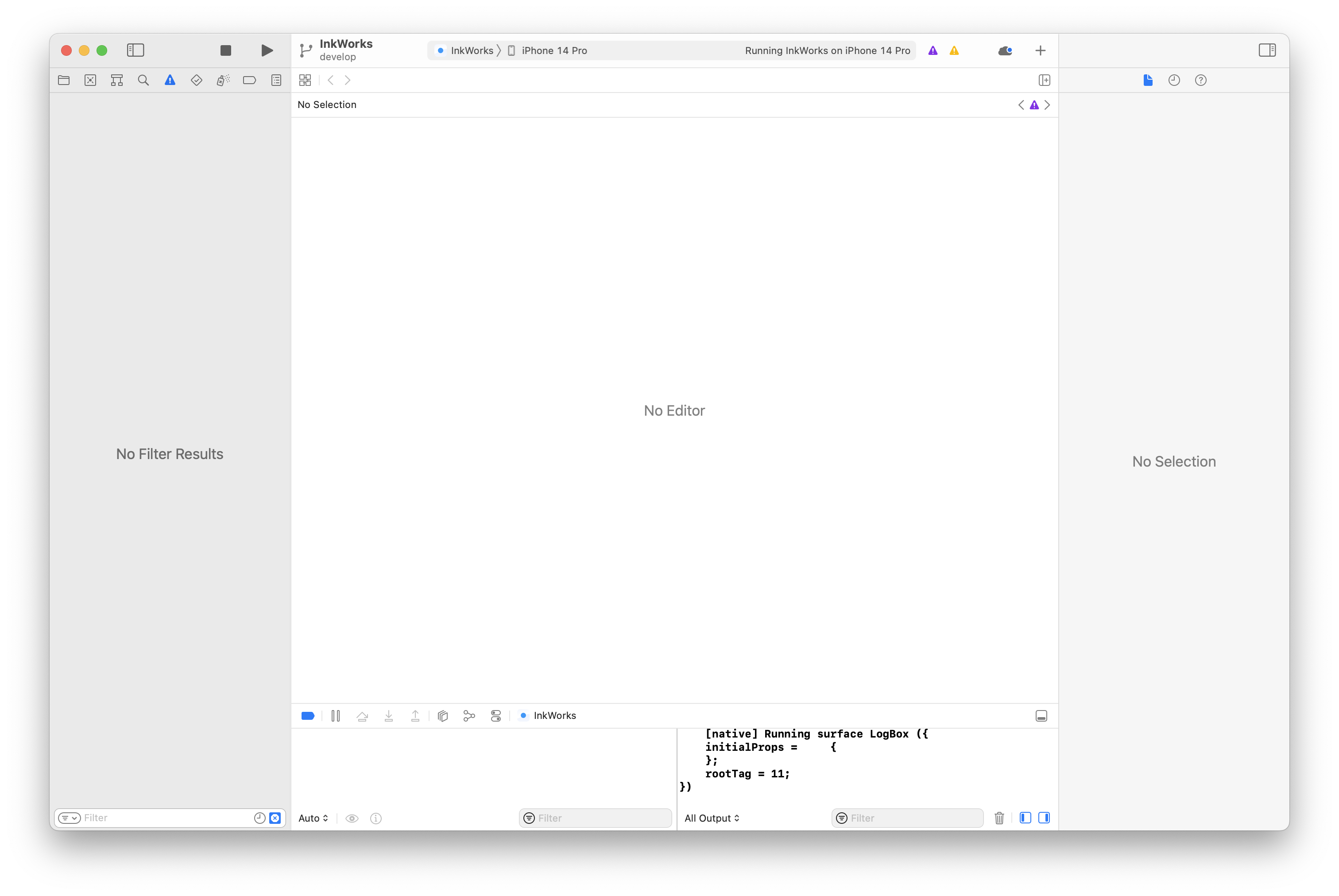
This will also run the built package in the simulator of your choice, which is really helpful for debugging app errors in your build.
For example, we had a bug in TestFlight where our react-native-maps view would not render. Everything seemed to work in Expo Go, but by building through XCode we were able to discover there were errors to fix.
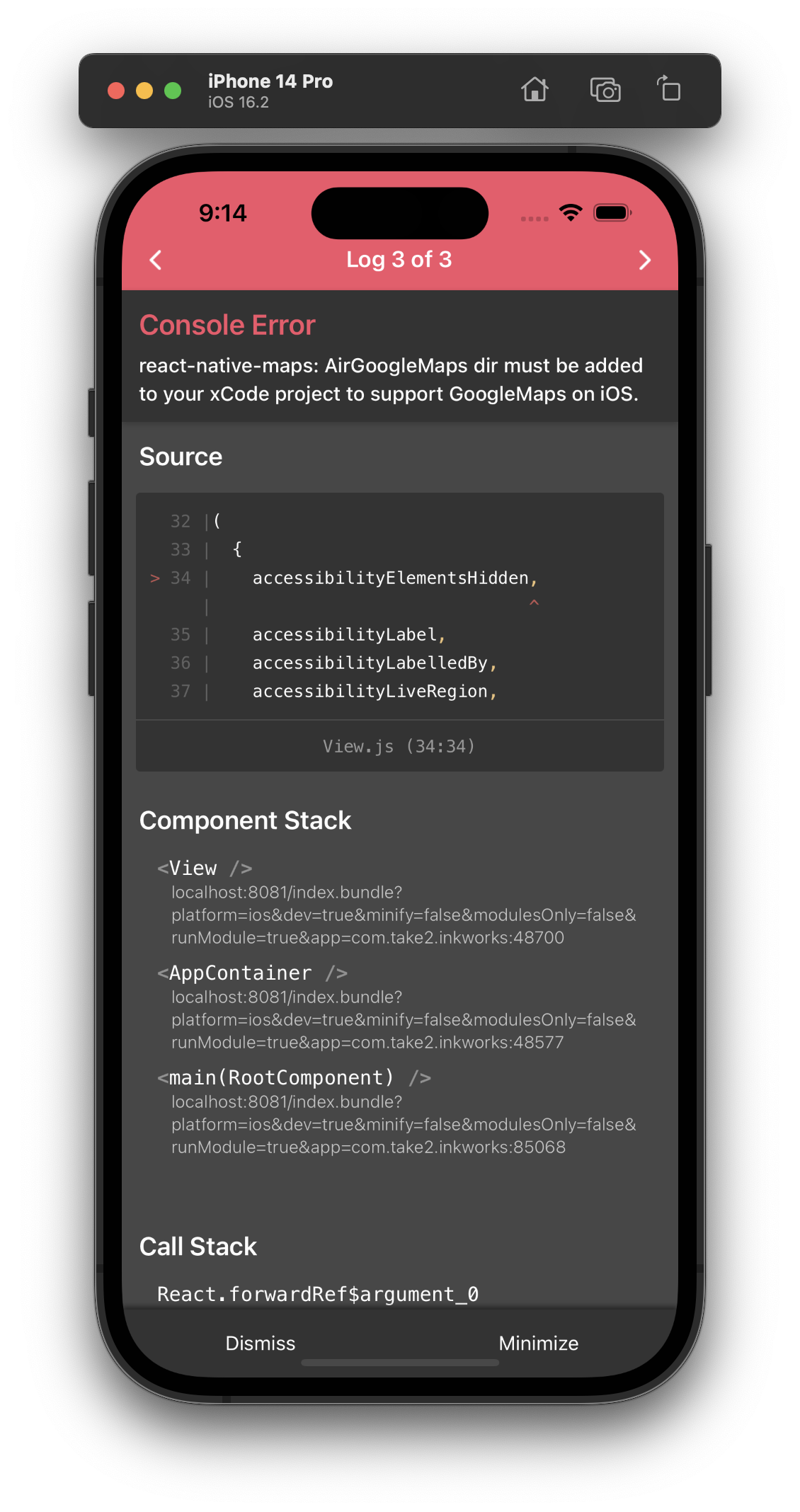
And after using the XCode build to find and fix the error (this one happened to be a missing API key), the app works!
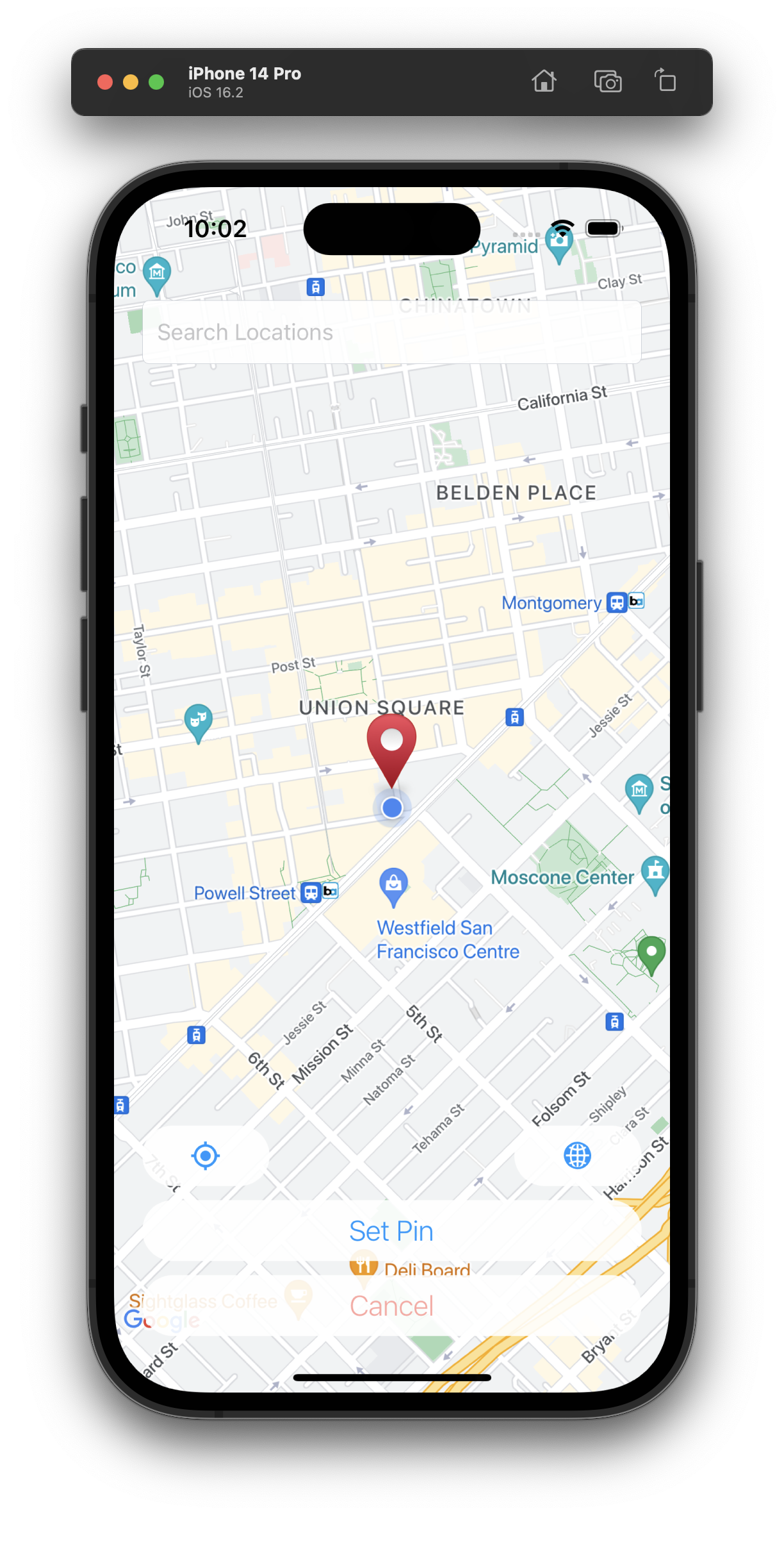
Once you've fixed the issues, you can delete the ios directory to ensure you stay in managed workflow...
$ rm -rf ios
... and easily resubmit your apps with the EAS Build service in one simple command:
$ eas build --auto-submit
If your credentials are set up, everything will automatically go out to TestFlight and the Play Store!
Happy hacking! 😎